



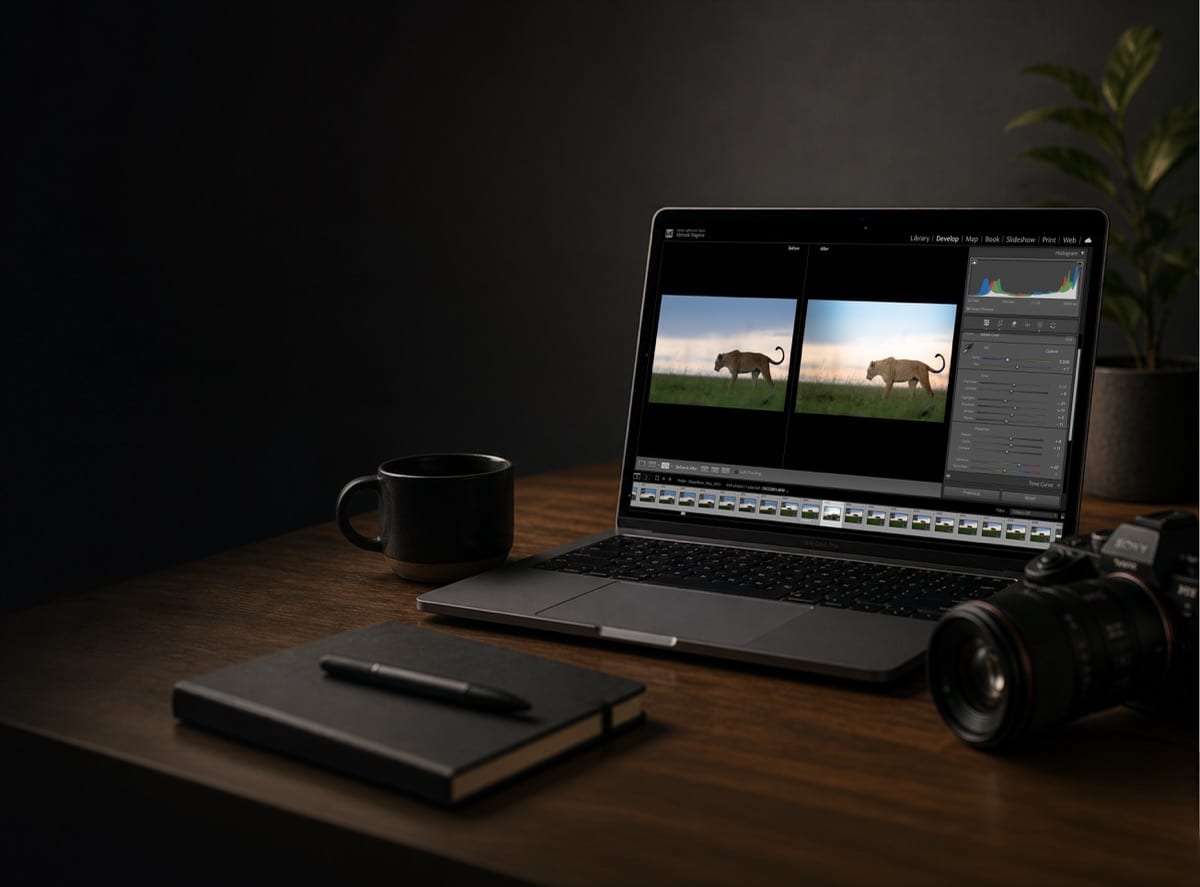
A short walk-through from my own editing desk. When a look is right on one frame, the work is moving it cleanly onto the rest of the take without redoing it by hand.
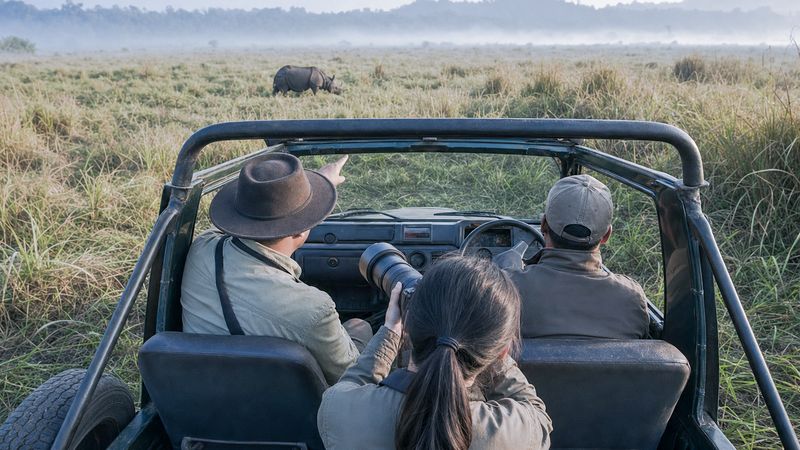
You come back from a safari or a birding session with five hundred plus photos, and for the same light and the same subject you end up editing them one by one, which honestly feels like punishment. It does not have to. Lightroom Classic has five ways to move develop settings across images, from basic to advanced, and most people use only one, sometimes the wrong one. A large part of my workflow depends on speed, consistency, and repeatability after long days in the field, so this is the exact set I use, and when I reach for each. The video above shows them on screen; the written version follows.
Method one: the Previous button
The fastest of the five, and also the most dangerous if you are not careful. Edit one frame, select the next, hit Previous, and Lightroom copies everything from the last photo: exposure, colour, masks, cropping, even the local adjustments and alignment. Perfect when the framing is similar, the subject distance has not changed, and you want an almost identical edit. The catch is in that word everything. If the subject has moved, the crop and the masks land in the wrong place and can quietly ruin the frame.
Method two: copy and paste, with choices
This is where deliberate editing starts. Copy opens a dialog listing everything Lightroom can carry across. For wildlife I usually tick colour grading, colour mixer, details, lens corrections, and masking, and I intentionally leave the crop behind. Paste on the next photo and the look travels while each frame keeps its own framing. This is the right tool when the light is similar but the composition has shifted, a bird changing posture between frames, for example. Method one would have dragged the crop along with it.
Method three: Sync
For a small group of images. Select the edited frame first, then the rest, and make sure the edited one is the most selected, the brightest thumbnail in the strip. Sync opens the same dialog as copy, once, for the whole selection. I keep my choices almost identical to method two. Short bursts, similar frames, quick passes before detailed refinement: this is its ground.
Method four: Auto Sync
My favourite, and the one that can mess things up if you forget one thing. Select a range of images, flip the toggle on the Sync button, and from that point every adjustment you make, exposure, contrast, even masks, applies to the entire group live, while you watch. Extremely powerful for real-time changes across a set that will share one treatment. Then turn the toggle off the moment you are done. I have ruined entire folders by forgetting.
Method five: a preset
Over time you notice patterns in your own editing. I often darken the edges to guide the viewer's attention to the subject, push vibrance while easing saturation, and work the shadows, highlights, and whites to bring the subject out. Instead of repeating that ritual, save it: create a preset, name it something you will actually remember, mine is Birds in low angle, and group them however you shoot, birds, mammals, birds in flight. One click applies the whole pattern, masks included, and it is there for every future shoot, including on import. I use mine as the base edit for most photos and refine from there.
One more thing worth the two minutes: the Settings menu lists all of these with their shortcuts, copy, paste, paste from previous, sync. Sync only lights up once you select more than one image. Learn a few of the shortcuts. It compounds over long trips.
You do not need all five. You need the right one at the right time.
And if the take you are editing has more soft frames than it should, start one step earlier: why wildlife photos go blurry, and how to fix them.
A few questions I hear
What is the difference between Sync and Auto Sync? Sync copies your settings once, when you press the button. Auto Sync stays on and applies every further adjustment to the whole selection, live, until you switch the toggle off.
Do I need to use all five methods? No. Each fits a situation. Previous for near-identical frames, copy and paste when the composition shifted, Sync for small groups, Auto Sync for live changes across a set, and a preset for the patterns you repeat on every shoot.


